

The dataset details page helps you explore, monitor, and leverage datasets.
When you click on a dataset in the data hub, a workspace, or other place in Power BI, the details page for that dataset opens.
The dataset details page enables you to perform a number of actions.
The actions available vary from user to user depending on their permissions on the data item, and thus not all actions are available for all users.
In what ways are dataset details helpful?
- Shows you metadata about the dataset, including description, endorsement, and sensitivity.
- Provides actions that you can perform on the dataset, such as share, refresh, create new, Analyze in Excel, and more.
- Lists the reports and scorecards that are built on top of the dataset.
- Preview underlying data in a dataset, select tables and columns from the dataset and export or customize data to create a new table. ¹
¹ New feature – preview data
Prerequisites
The dataset can be inside workspaces as Non-Premium or Premium. Classic workspaces are not supported. Read about new and classic workspaces.
Important: You need compile permission to use the dataset.
To preview data from dataset details page, you can select data from dataset’s tables on the side panel. If you do not see a side panel, click on “Show tables” from the action bar.
| “Show tables” | Opens a side panel showing the dataset’s tables. In the tables view you can create table previews by selecting desired columns. See picture below. |
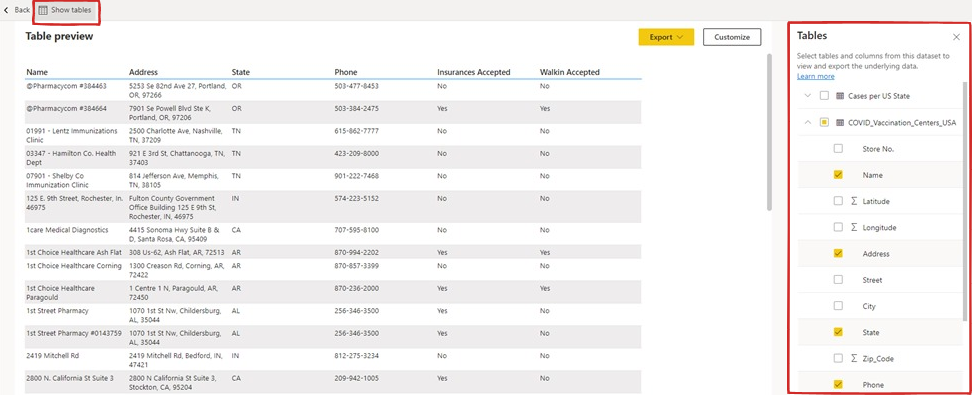
The parent checkbox on the dataset’s table will indicate if all been selected, or only partially selected. Previews may not show all of the data you’ve selected. To see more, you can export or customize the newly created table.
Note: Table view is intended to quickly show the detail level data of tables within your dataset. When selecting measures, they are not summarized by default. You can use the “Customize” table editor to switch between summarized and non- summarized views.
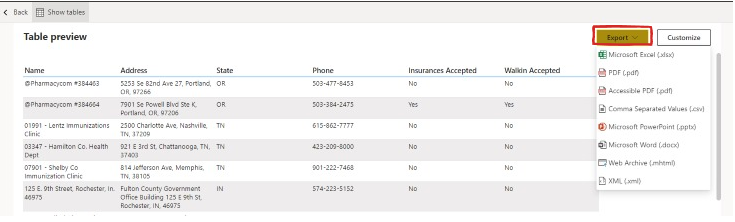
The exported report is saved to your default downloads folder.
Clicking ‘Customize’ will maintain your current selection and open it in formatted tablewhere you can apply table styles, change aggregates, or save it as a Paginated report to a workspace.
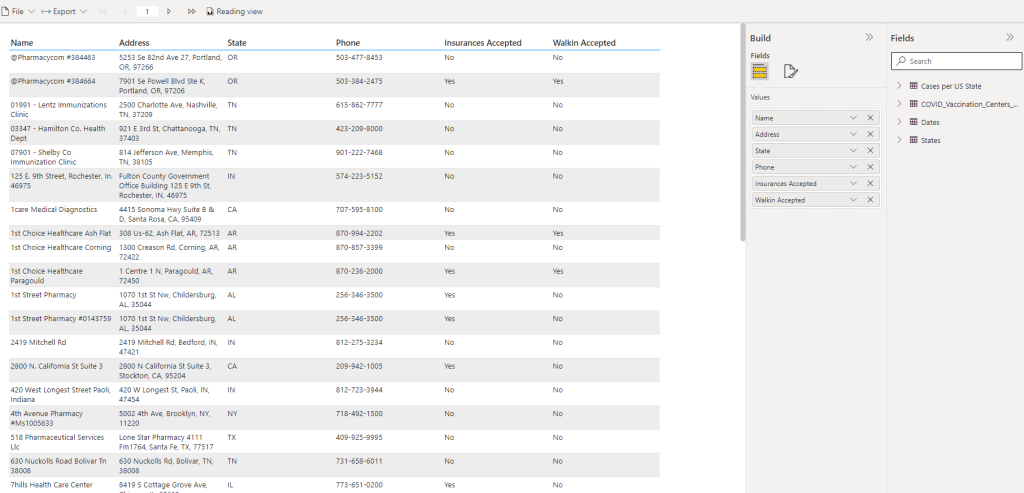
Paginated reports add rich export capabilities to any of the supported formats, preserving full fidelity.
Preview data is a cool feature that allows you to leverage datasets and gain insights.
Source: Power BI Blog.
Stay on top of all the news about Power BI by accessing the DataEX Blog every Friday! And so you don't miss any news about the Data Universe, follow us on our social networks.
With Power BI you can build essential dashboards for your business.
With the support of a team of experts, you create customized dashboards with all the essential information about your company. Access your data wherever you are, with Power BI.
Fill out our form and get in touch with our experts.
