

Multiple Audiences in the Power BI Apps is released in public preview mode. In other words, one of the most requested features by the community can be used with multiple audiences in a single app and assign different permissions to each group.
Prior to this feature, to create multiple Apps for different audiences, the App authors had to set up different workspaces to register Apps for each audience. This workspace level isolation resulted in content duplication and operational overhead for the App Authors.
With this new capability, the authors can decide which content artifact such as reports, dashboards, etc. should be shared with specific audience groups within an App using a single workspace. This allows fine-grained access permissions for the App consumers who can consume various artifacts in the App based on their group permissions and minimizes operational overhead for the App authors.
Note: We have made some changes to the Workspace UI. Read the Consideration and Limitations section at the bottom of the blog to learn more.
Get started with the Multiple Audiences for a Power BI App – The App Author view
The old app authoring experience to allow Apps authors to seamlessly create audience groups within a Power BI App and add access permissions on the artifacts such as reports and dashboards within the app.
Here is a step-by-step guide on how to get started with the new experience.
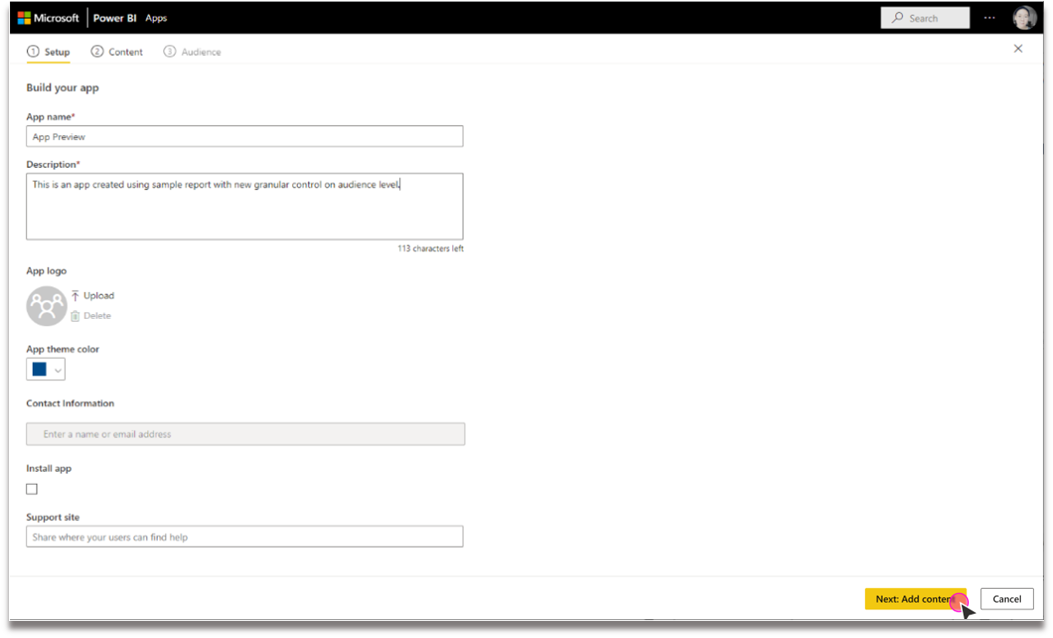
Step1: Register an app using the Setup Tab
App setup tab allows app authors to register an App and add details such as App’s name, description, logo, etc.
Step 2: Add content artifacts using the new Content tab
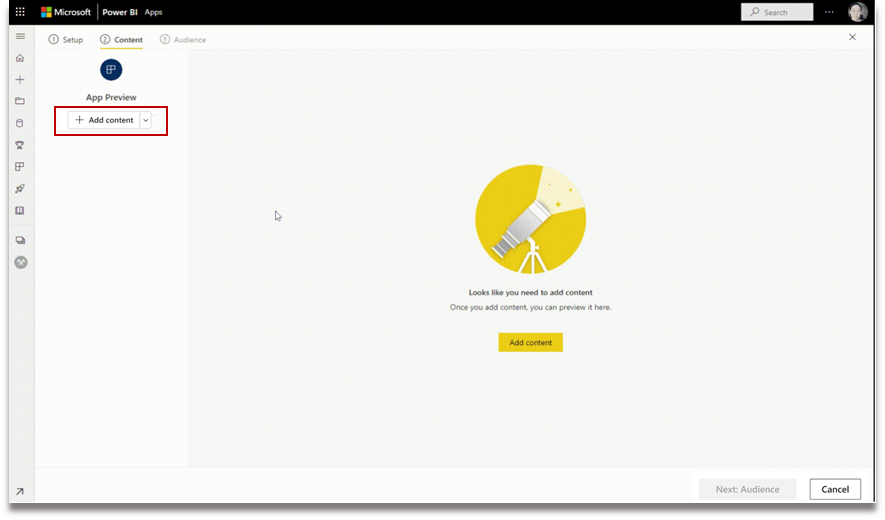
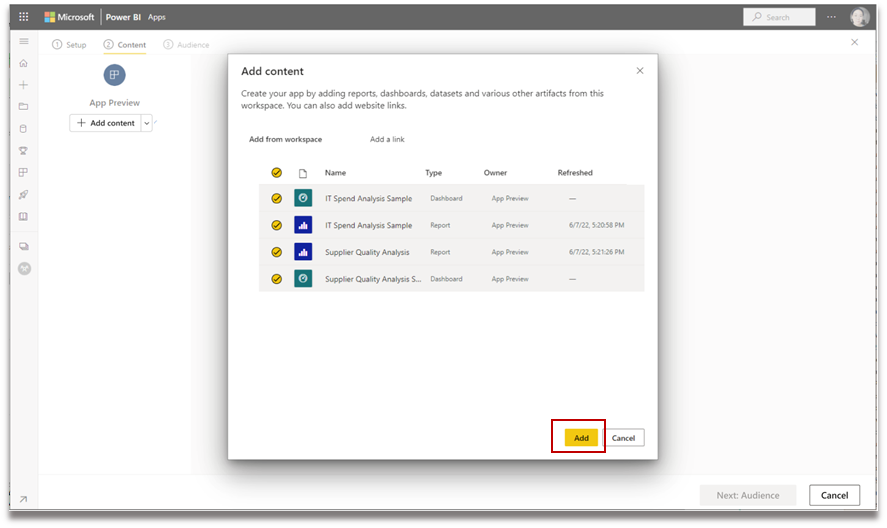
A “Content” tab in the UI experience that allows App authors to easily add content artifacts such as reports, dashboards etc. and even links to other websites. By clicking on “Add content” button in the “Content” tab, the App authors can select artifacts that they want to add from the current workspace. See below.
The App author can also preview the content of the added artifacts. App authors can also add links to websites by clicking the “Add a link” from the drop-down menu next to “Add content”
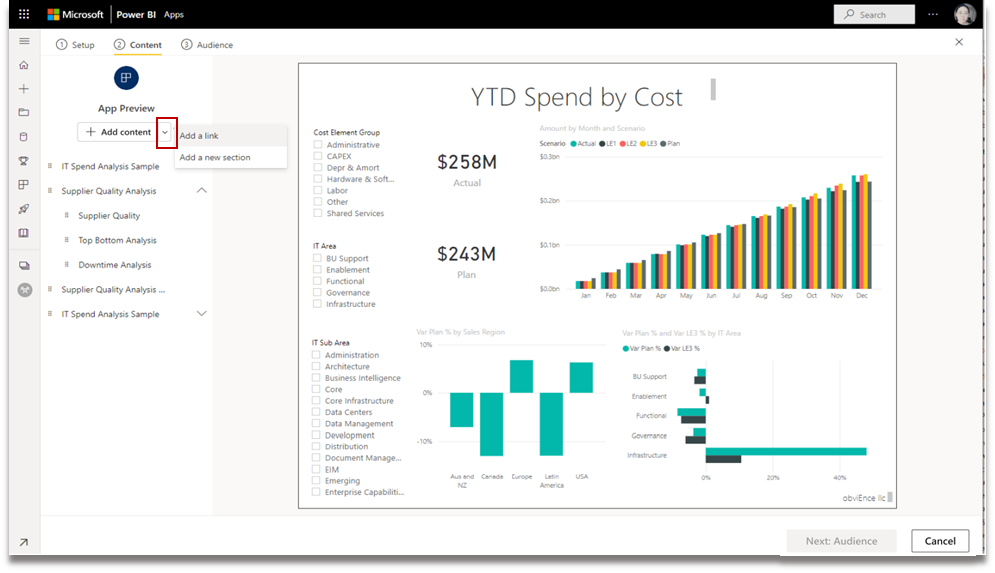
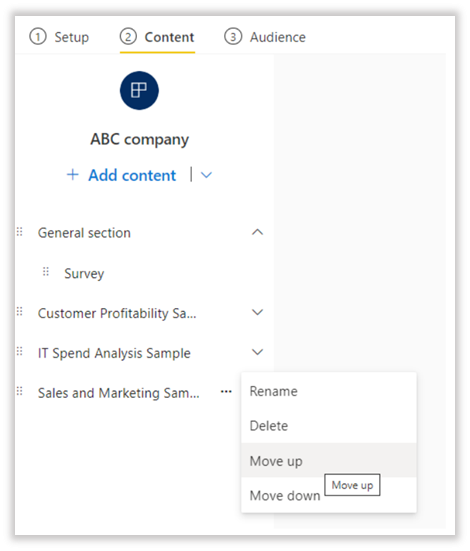
The App author can also change the order of the content artifacts in the App by:
- Dragging and dropping the artifacts.

- Using “move up” or “move down” options next to each artifact.
Step 3: Create and manage audience groups using the Audience tab
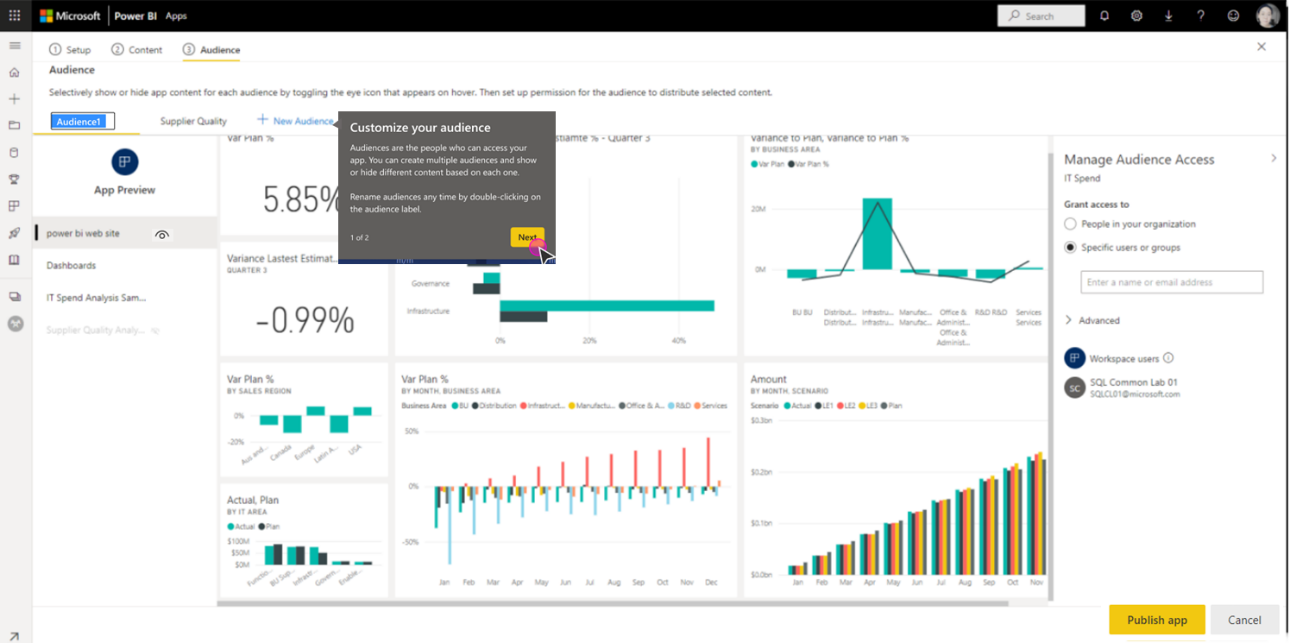
The new “Audience” tab allows App authors to create and manage audience groups within an App. Furthermore, by using the “Manage Audience Access” pane, the author can specify which groups or users should be added to the current audience group. The app author can also change the name of the audience by double clicking on the default audience label. The app author can create up to 10 audience groups within an App. By clicking the hide/unhide icon next to each artifact, the App authors can control the access to each artifact within an App.
Step 4: Share the App with the App consumers
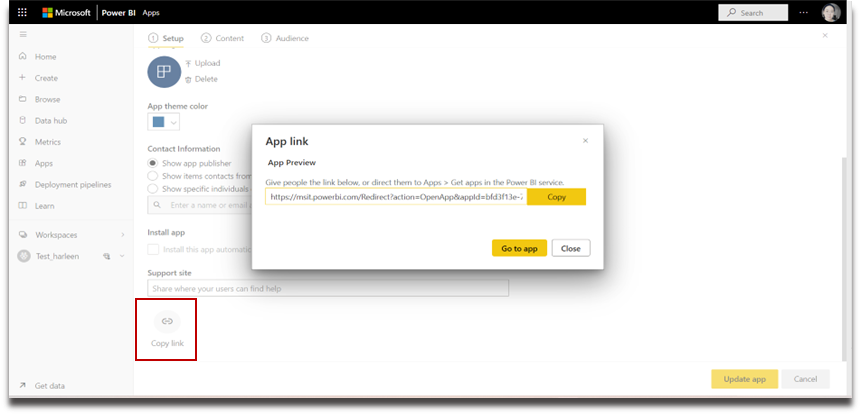
App authors can share the published apps by clicking the “Copy link” button at the bottom of the Setup page. This generates a shareable app link that App authors can share with their consumers.
The app consumers can also request access to the app by searching for the app from Apps marketplace or AppSource. Once app is installed, the app authors can visit the app permission management page by clicking on “Manage permissions” in their Apps Tab to approve/decline any access request.
App consumer View
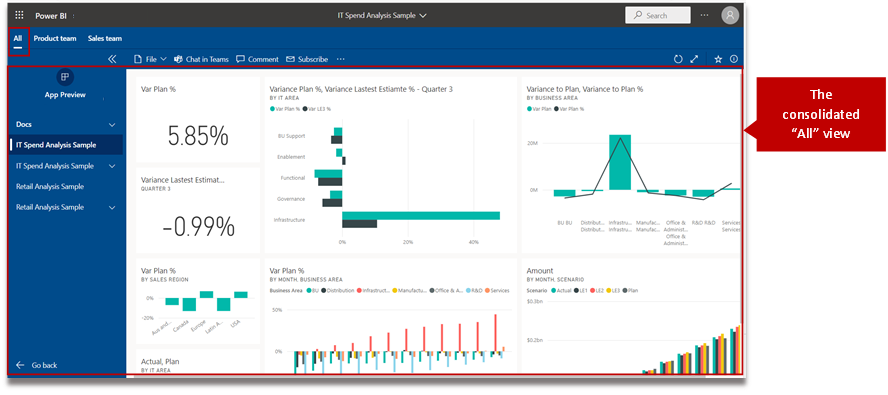
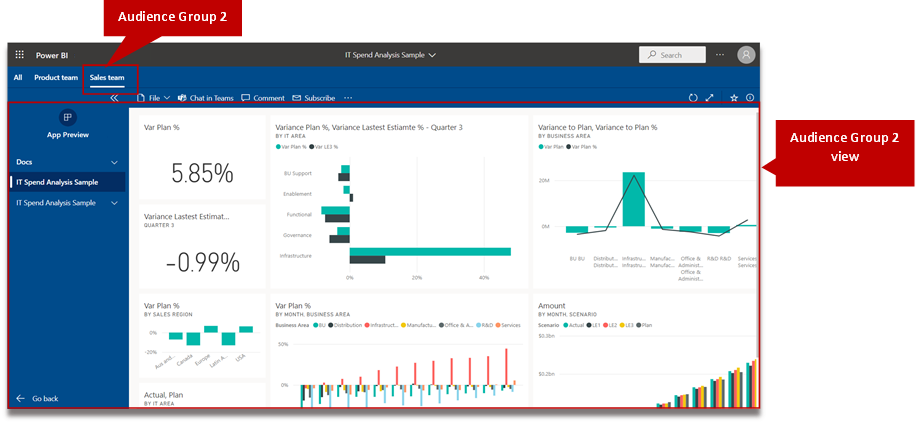
The App consumers can only see the content artifacts based on the access permissions for their respective audience groups. Consumers who have access to multiple audience groups will see group tabs on the top bar to switch between different audience views easily (as shown below). By default, the consumers are displayed the “All” tab view, which is a consolidated view showing all content artifacts that they have access to. The App consumer can browse different audience groups tab to see what artifacts are added for that group.

Considerations and Limitations
- For the public preview, we have disabled the “Include in App” column in the Workspace. The app author can add/delete a content from an app by clicking on the “Update app” button.
- A pending request will not be approved unless an audience group is selected for the consumer. The audience group can be selected by clicking the “Audience” drop down button on the app permission management page.
- By default, all the newly added content, to an already published app, is marked as invisible. The app author must go to each audience group and manually unhide it.
Source: Power BI Blog.
Original Post Author: Harleen Kaur.
Every Friday we bring you more updates on Power BI and the data universe. Follow us on our blog and on our social networks and stay up to date with the news!
Discover all DataEX services by filling out the form below and talking to our team of experts.
